
You can request payments as a link. It sends them a 'mini invoice' which they can pay by debit or credit card, Apple Pay, or Google Pay. Even though the name suggests it can only be used in text messages, the link can be used anywhere including in a text message or in an email.
Payment Links
- Click on Contacts and click the name of the contact you wish to send the payment link to.
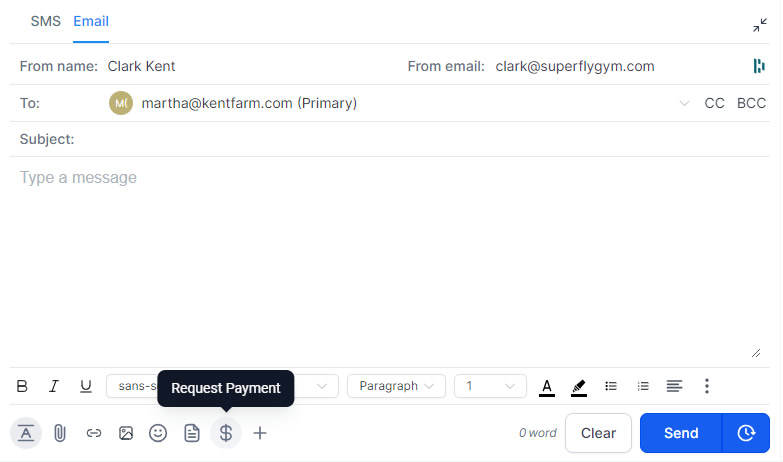
- In the center panel, at the bottom, click on the Request Payment icon (dollar sign).
- You may need to connect Stripe (through Stripe Connect Flow). If so, click Connect Stripe in the popup window. Select the account you want to connect and log in to Stripe using your email and password.

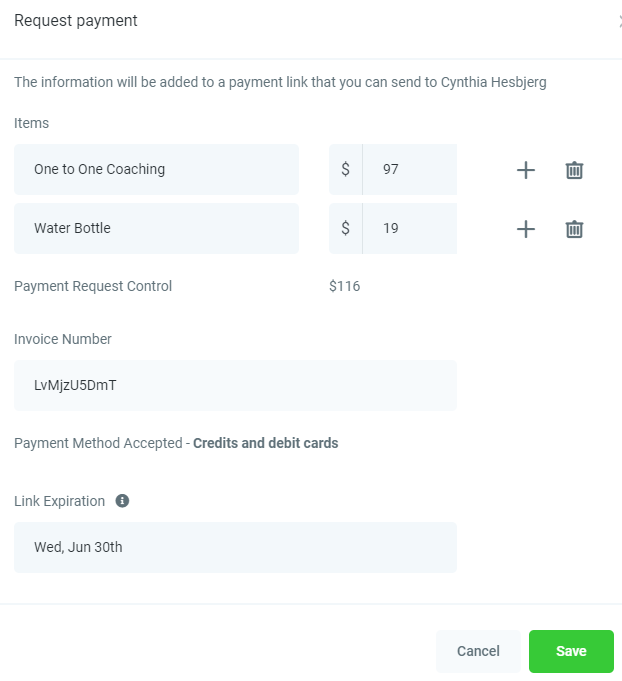
- Add the items and price (using the plus icon to add multiple items and the trashcan icon to delete unwanted items), and an invoice due date. The system will automatically generate an invoice number.
- You can also set a link expiration date (that will expire at midnight on the date selected). Either toggle on Link Does Not Expire or set an expiration date (and a message to show them if they pass that date).
- Press Save to generate the unique link. This link can be sent in any message (text, emails, messenger, etc) and can only be used once.
Text to Pay
View Payments
To view payments, go to Payments > Transactions.