
Phone Numbers
Phone Overview
You can have a dedicated phone number within Growth Catalyst CRM, which can be used to send and receive text messages and to make or receive phone calls, either through the Lead Connector app or directly from your desktop. This number can be used for things like manual text messages, appointment reminders, and automated nurture sequences.
If you’d like to send text messages through the system, you’ll need to have a phone number set up within your account. You can’t use your personal number for this.
Phone Costs
For more information about phone costs, click here. You’re charged for sending and receiving text messages (per message segment) as well as for incoming and outgoing calls.
Phone Registration
Before adding a phone number or porting an existing phone number, you must contact the Support Team at support@growthcatalystcrm.com. Requirements differ by country and you must complete regulation steps in order to register your business and number.
Messages from an unregistered number are blocked by carriers and you will still be charged.
A2P 10DLC
If you are based in the United States or send messages to the United States, you must register for A2P 10DLC before you send messages.
In order to complete this process you must have a fully functioning website, a business email address, a privacy policy that includes text messaging, and your CP 575 form.
Add a Phone Number
- Go to Settings > Phone Numbers > Manage Phone Numbers, click on the blue + Add Number button and select Add Phone Number from the drop-down menu.
- . Choose a country from the dropdown menu.
- If you want your number to match to specific area, click on Filters, add the are code and select Match To First Part of Number. Click Apply.
- From the list of numbers that show up, choose the one you want and click on Proceed to Buy to finish.
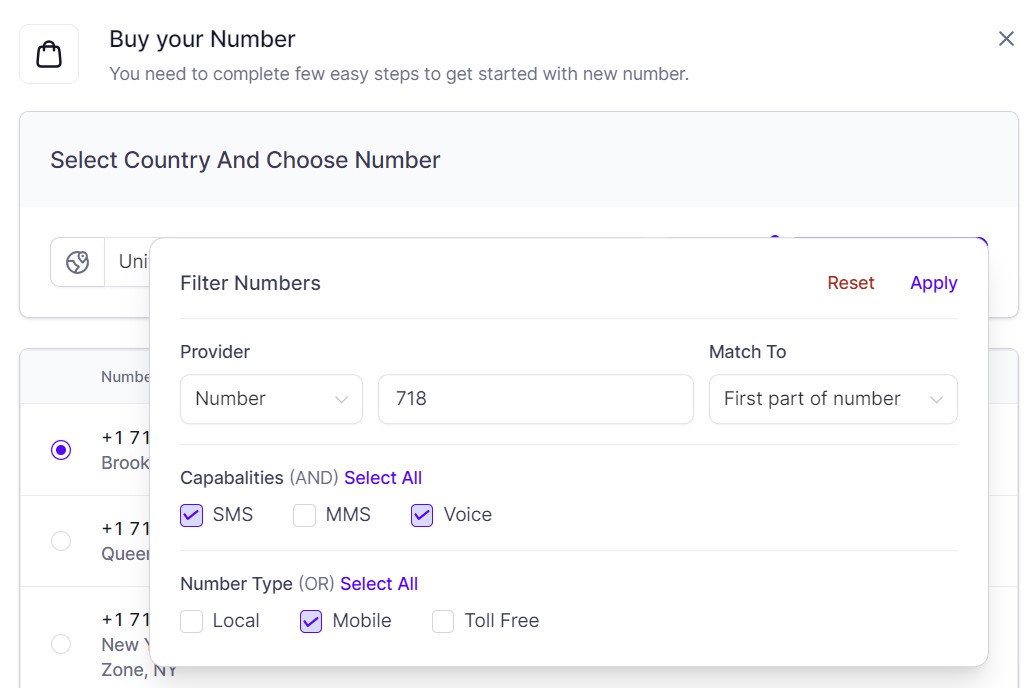
Some area codes can become unavailable for a period of time, in which case, you would need to search with a different area code. You can always repeat your search at a later date to check for availability.
You can also use the filter to search for other criteria, such as matching to any part or the last part of number. You can also search using text if you want the digits to match up to a phrase.
Delete a Phone Number
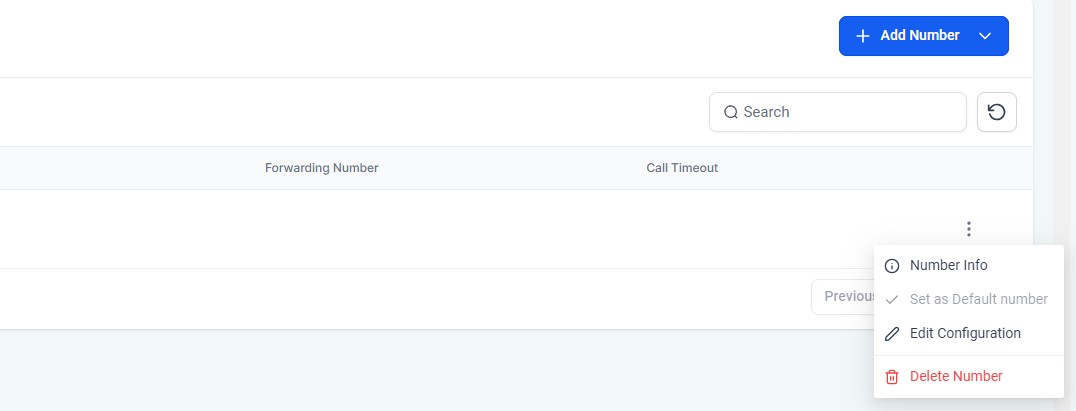
- Go to Settings > Phone Numbers > Manage Phone Numbers, click on the ellipsis menu (⋮) for the phone number you wish to delete and select Delete Number.
- . Click the Delete icon on the right side. Type Delete in the box and press Confirm Delete.
- If you no longer require the number, type Release in the second box and press Confirm Release.
Sending Compliance
Message Policy
When sending SMS messages, you need to adhere to the carriers messaging and filtering policies to prevent your messages from being filtered/blocked.
Click here for more information on filtering. Click here for the full messaging policy. You should also check the sending guidelines for the country you are sending messages to and ensure your message does not contain forbidden content.
Hyperlinks
You cannot send messages containing links shortened with public URL shorteners (such as TinyURL or Bitly). Messages with these links will be blocked and will not send.
If you need to include links, use a URL specific to your business. If you are based in the US or sending messages to US recipients, this is a legal requirement under A2P 10DLC. For businesses outside the US, it is strongly recommended to improve deliverability and compliance with best practices.
You can use URL Redirects to create business-specific URLs for SMS messages.
Click here for more details.
Emojis and Language
We also recommend avoiding excessive capitalization, emojis, and unnecessary special characters, as they can affect message readability and may impact deliverability. Additionally, ensure proper grammar and spelling to maintain professionalism and clarity. Emojis also impact the segment character count.
Click here for more details.
Consent
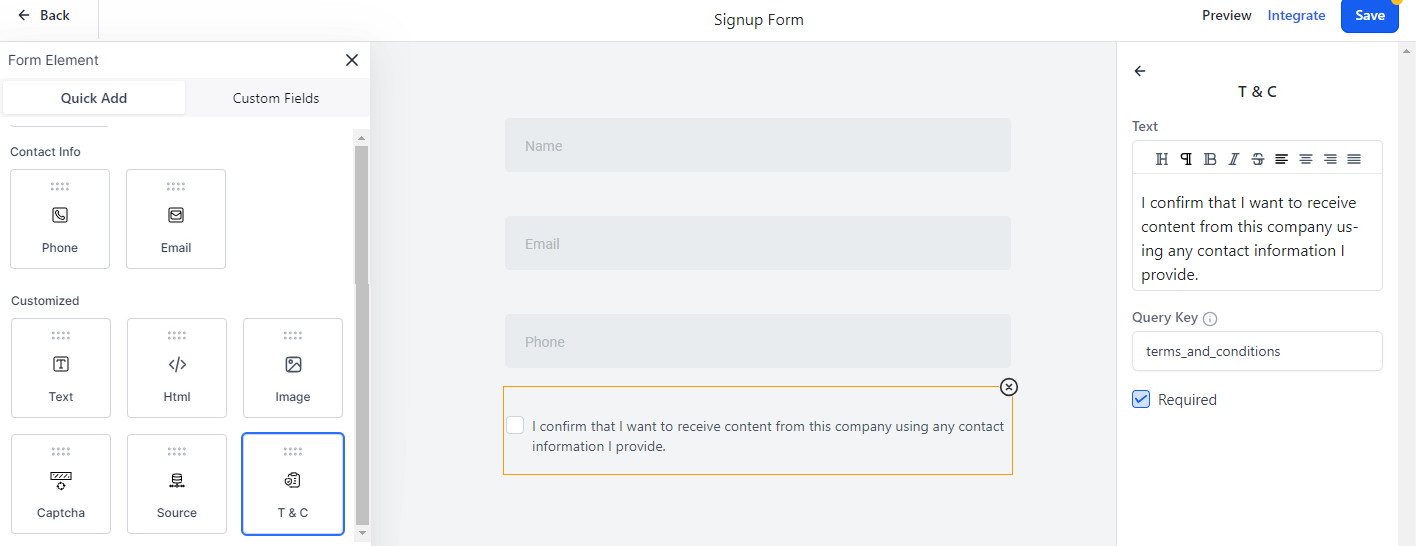
Ensure that you only send messages to mobile users who have provided consent to receive messages from you. If you are using a Growth Catalyst CRM form or survey to collect contact information, the system will automatically add a terms and conditions consent check box (but you can also add it separately if needed). You can edit/customize the wording in the right hand properties panel.
If you are sending messages to users repeatedly over a long period of time, you should check in with your recipients at least once every 18 months to ensure they still want to receive messages from you. Every message you send must clearly identify you as the sender, except in follow-up messages of an ongoing conversation.
Opt-Out
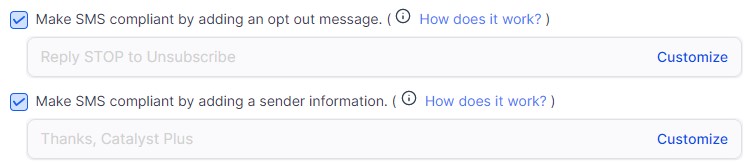
The end user should have the capability to remove the consent at any time so ensure that your messages clearly identify how to opt out. If you are contacting the same recipients multiple times per month, you do not need to provide opt-out instructions in every message, but you must do it at least once per month. The opt-out language you include in your messages must include a widely accepted keyword for opt-out, e.g. "Reply STOP to unsubscribe."
Default Settings
By default, to help you stay compliant, the system sends Sender and Opt Out information automatically for messages sent as a bulk action or in a workflow. To customize this, go to Settings > Business Profile and go to the General section.
Compliance Rates
Compliant Message Activity
A good opt-out rate is typically in the range of 0 - 1.0%. A high opt-out rate indicates that contacts receiving messages have objected, generated complaints or marked your SMS as spam.
A good error rate is typically in the range of 0—5.0%. A high delivery error rate indicates that SMS sent to contacts are no longer in service, are unreachable, or use a non SMS capable device such as a landline. This may also mean that external carrier filters are refusing to deliver your SMS due to bad sending behaviour in the past.
If you have a high opt-out rate (more than 1%) or high delivery error (more than 8%), your account will be restricted for 24 hours. If you have a very high opt-out rate (more than 2.5%) or high delivery error (more than 12.5%), the phone carrier will place a temporary restriction on your account.
Validation
Phone Number Validation
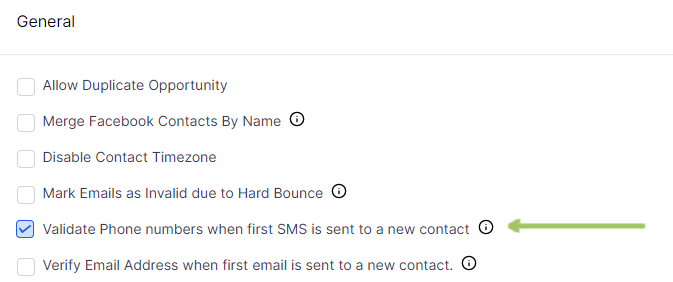
Ensuring you are sending to a valid mobile number improves your delivery rate and decreases your error rate and risk of account restriction. Phone number validation costs $0.005 per validation and will only be triggered once per contact.
To enable Number Validation, go to the Settings > Business Profile. Under the General section, enable Validate Phone Numbers.
Invalid Phone Numbers
The number will be validated when the first SMS is sent or a call is made to a new contact. If a number is invalid (such as the number is SMS incapable because it is a landline), temporary DND will be enabled for SMS messages. This will ensure that no future SMS communication is sent to this contact number.
Dedicated Numbers
Assign a User Their Own Phone Number
Note: This is only required if a user/team member needs a dedicated number. It is not required for voicemail or for routing the call to the assigned user.
- Go to Settings > My Staff > Team Management. Select the user (team member) and click on Edit. Scroll down to the Call & Voicemail Settings section and select an Inbound Number.
- Ensure that in both Phone Number settings and User Settings the call timeout is less than 60 seconds. If you are also assigning a voicemail to the phone number, the call timeout will need to be less than 20 seconds.
Outbound Communication
Outbound Dedicated Numbers
If you have multiple phone numbers on your account, here is an overview of how the system selects which number to use when sending an SMS message or calling a contact.
- Current User/Team Member has a Growth Catalyst CRM Number – If the current user/team member has a Growth Catalyst CRM number assigned to them (and are logged in), then the system will always use that number when sending an SMS message or placing an outbound call (even if they have been assigned to someone else). The reason behind this is that even though the Contact may be assigned to another user, the current user might be talking about something else. This makes it clearer to the contact/customer that they are talking to some different and it keeps messages grouped together.
- Contact Assigned to a Team Member – If the current user does not have their own Growth Catalyst CRM number and the contact has been assigned to a different user (eg, through a campaign), then Growth Catalyst CRM will use the assigned user's number. If the assigned user has a Growth Catalyst CRM number, the system will use that. If the assigned user does not have an assigned Growth Catalyst CRM number, the system will use the Default outbound number selected.
- Repeat Contact – If the contact gets contacted more than once, Growth Catalyst CRM will default to using whatever number was previously used to contact them. This rule applies unless they have since been assigned to a user and the user/team member has an assigned Growth Catalyst CRM number selected.
- Contact Not Assigned – If the contact is not assigned to a user, the system will use the Default outbound number.
Click here for a flow chart running through these scenarios. When you click on Contacts and go to the conversation panel in a contact page, the icons on the right of a message help to indicate which phone number is used when sending SMS.
