
Membership Automations
You might want to automate processes for memberships. You can trigger workflows based on how users interactive with the course and you can grant and revoke membership as workflow actions.
Click here for more information about using Workflows.
Membership Triggers
Membership Workflows
- Go to Automation > Workflows and either create a new workflow or open an existing one.
- Click Add New Trigger and select the required Membership trigger (see below). Click Add Filters where necessary and select the required offer/product/category/lesson.
- Click the + to add a new action to the workflow. Use the drop-down menu to choose one or more actions to occur, such Add a Contact Tag, Send Email, or Send Internal Notification.
- Add any other required steps.
- Press Save and toggle on Publish.
User Login
You can trigger a workflow when a user logs in the membership area. We recommend disabling Allow Re-entry in the workflow Settings. You might wish to send them a welcome email or congratulate them on getting started. If you have a memberships pipeline, you could also update their stage.

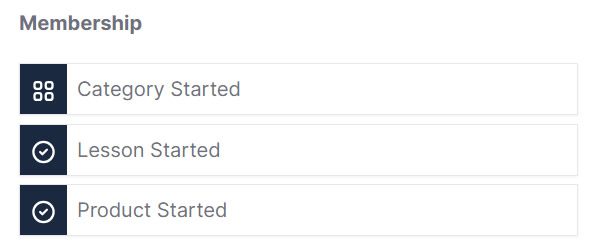
Product/Category/Lesson Started
You can trigger a workflow when a user starts a product, category or lesson. You might want to send an email to send them additional information, update a pipeline stage, add or remove a contact tag.
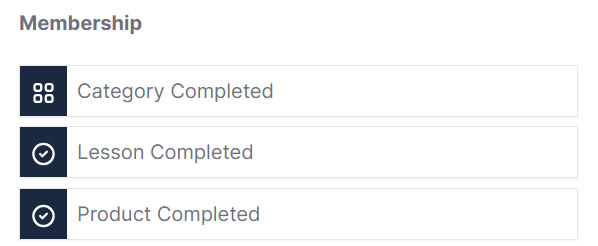
Product/Category/Lesson Completed
You can trigger a workflow when a user completes a product, category or lesson. You might want to send them an email or text message congratulate them, update a pipeline stage, add or remove a contact tag, or send an internal notification.
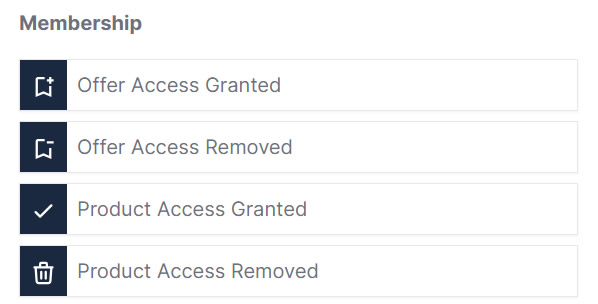
Offer/Product Access Granted/Removed
You can trigger a workflow when either access to an offer or product is granted or when it is removed. You might want to send an email or text message to the contact.
Membership Actions
Grant or Revoke Access
- Go to Automation > Workflows and either create a new workflow or open an existing one.
- If required, add a workflow trigger (such as Order Form Submission or Form Submitted).
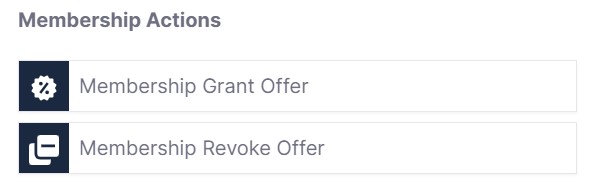
- Click the + to add a new action to the workflow and choose either Membership Grant Offer (to grant access to an offer) or Membership Revoke Offer (to revokes access to an offer). Select the offer from the dropdown list and press Save Action.
- Add any other required steps.
- Press Save and toggle on Publish.
Send Login Details
Once access to an offer has been granted, you will need to send login details by email.
Click here for instructions.