
Create a Payment Link
A payment link is a quick way to send someone a method of payment when you do not need the full sales pitch of a funnel. They are quick to make and quick to share.
Create a Payment Link
You need to create the product in Payments > Products before you can make a payment link for it.
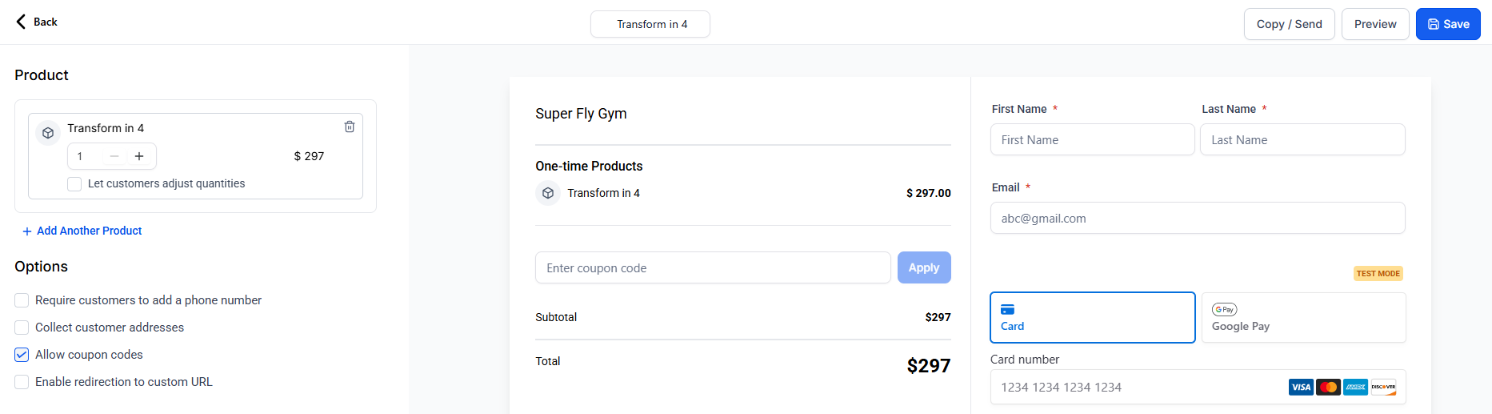
- Go to Payments > Payment Links and press the + Create New Payment Link button in the top right corner.
- Click on the box at the top of the page to name the payment link.
- Select your product from the drop-down menu. You can add a second product, and you can choose whether a customer is able to order more than one.
- Under Options, choose whether to collect a phone number, collect an address, allow coupon codes, or enable a redirection to a custom URL.
- Under Advanced Options, set the call to action for the payment button, which is Pay, Book or Donate. You can also add terms and conditions, and set an automatic deactivation date, which is useful for a program you do not want people joining after it starts.
- Press Save to finish.
Preview Link
To preview the payment link, click on Preview at the top of the link editing page.
Copy or Send
Click on Copy / Send at the top of the link editing page. To send the link straight to a contact, select them from the list and choose email, SMS or both, then add a subject line or pick one of your templates. To share the link yourself, copy it to your clipboard.
Payment Links Dashboard
Payment Links Dashboard
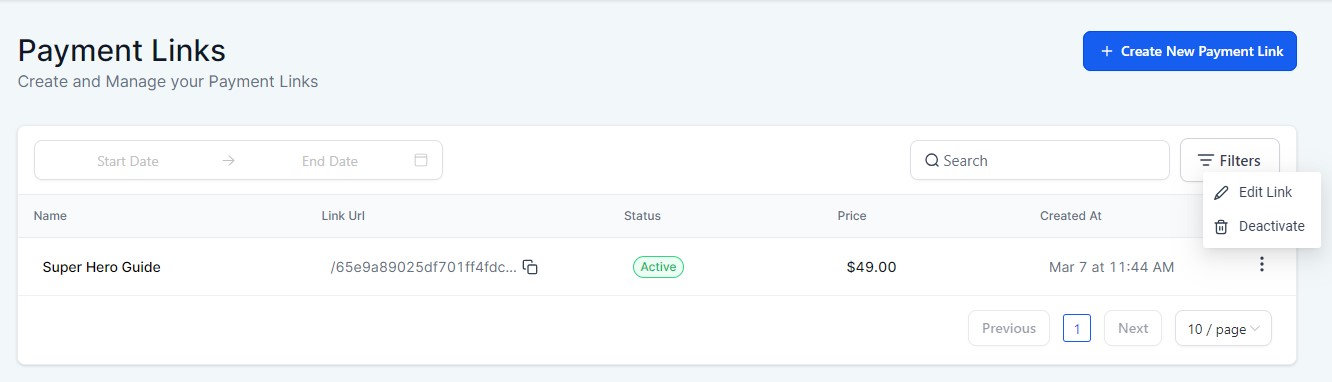
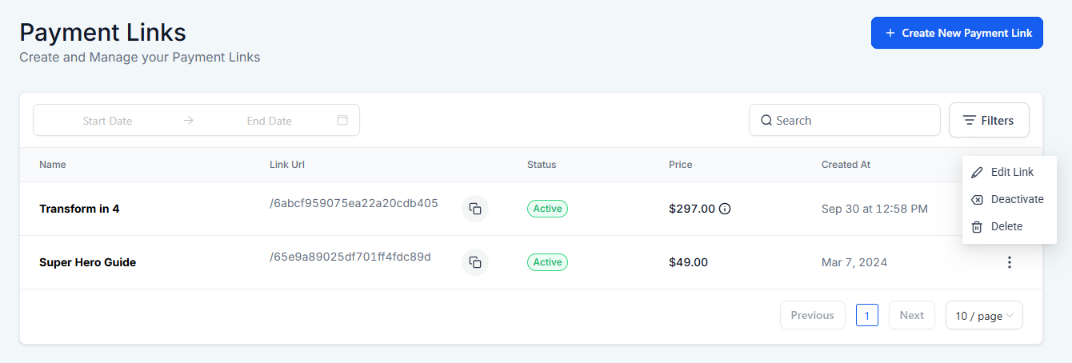
Go to Payments > Payment Links to view existing links. There is also information on name, link URL, status, price and date created. You can use Filters to filter by date, status or source. You can change page in the bottom right corner.
Payment Link Url
There are three places you can take the link from. Press the Copy icon for the link in the Link URL column, copy the URL from the preview, or press Copy / Send in the link editor.
You cannot edit a payment link URL. You can create a URL redirect in Settings > Domains & URL Redirects > URL Redirects.
Ellipsis Menu Options
Click on the ellipsis menu (⋮) to view available options. These include Edit Link, Deactivate and Delete. Once you select an option, follow the on-screen instructions.
Automations
Payment Link Sale Workflows
When someone pays through a payment link, you can trigger a workflow to carry out actions such as adding them to a Coach Catalyst program, adding a tag or sending a confirmation email.
- Go to Automation > Workflows and either create a new workflow or open an existing one.
- Click Add New Trigger and select Order Submitted. In Add Filters, choose Order Source and select Payment Link. Click Add Filter, choose Global Product and select your product.
- Click the + to add a new action to the workflow. Use the drop-down menu to choose one or more actions to occur, such as Add a Contact Tag, Send an Email or Execute a Webhook.
- Add any other required steps.
- Toggle on Publish and press Save.
The two filters do different jobs. Order source keeps the workflow to payment links, and global product keeps it to the one product.