
Lead Connector Mobile App
Lead Connector Mobile App
The Lead Connector mobile app allows you to access key features of Growth Catalyst CRM on the go, including conversations, payments and invoices, appointments, contacts, pipelines, social media planner, tasks, reputation management, and product management.

Download Lead Connector App
Click on Launchpad at the top of the main menu. Click on the Download on the Mobile App Section. Enter your mobile/cell number and the system will text you with a link to download the Lead Connector app. Alternatively, you can click here to download the Apple app or click here to download the Android app. Once you have downloaded the app, log in using the same credentials as the desktop app.
App Layout
Once you have downloaded the app, log in with your Growth Catalyst CRM credentials. Once you are in the app, the five tabs (going left to right) are Notifications, Conversations, Transactions, Calendars and Contacts. You can access additional options by clicking on the hamburger menu (three lines) in the top left corner, and Quick Actions by clicking on the lightning icon
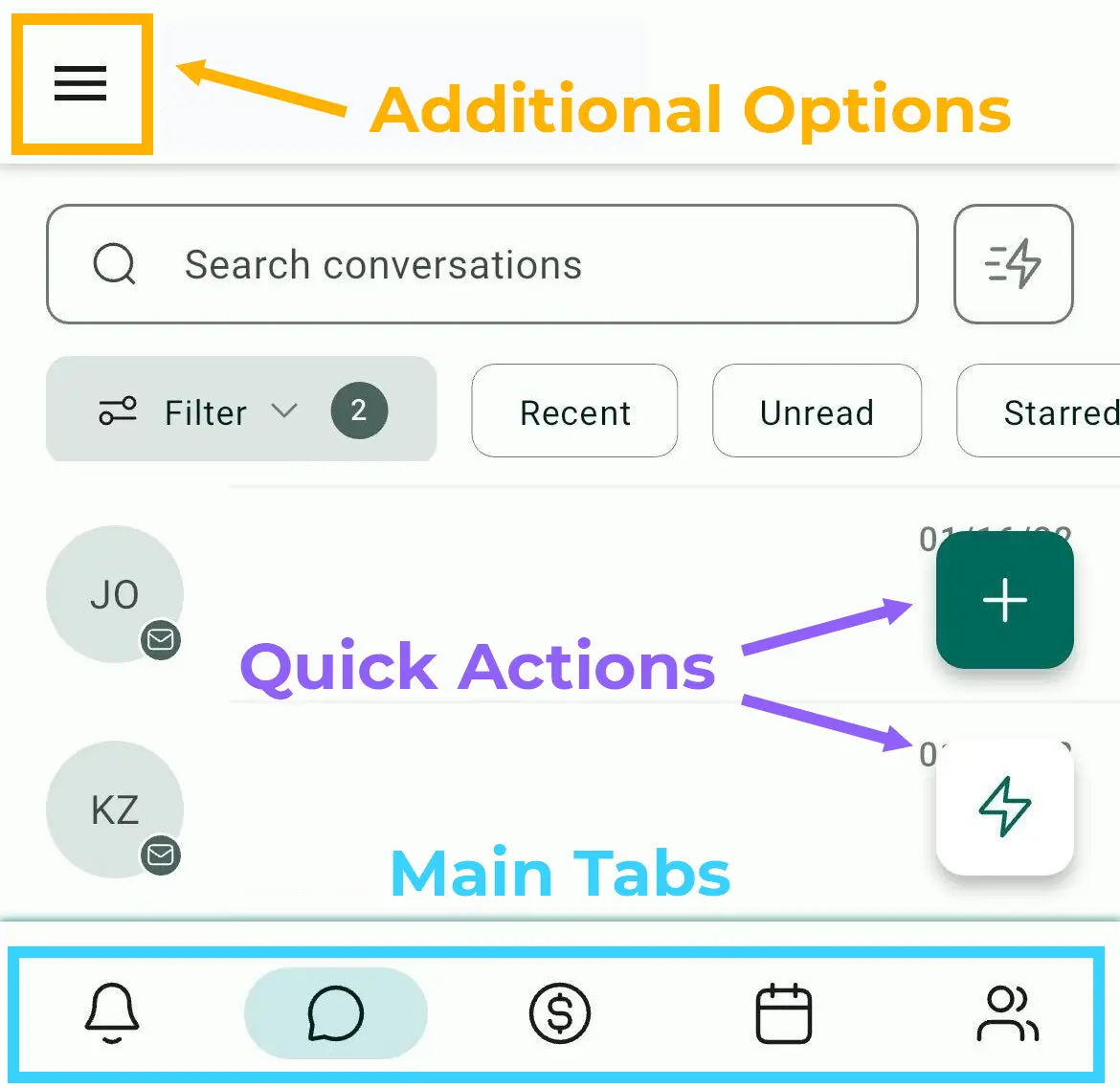
Main Tabs
Notifications
See updates and news about conversations, appointments, tasks and social media. Tap the funnel for filter options and tap the ellipsis menu (three vertical dots) to mark the notifications as read.
Conversations
See all conversations (emails, SMS, chat widget, Messenger, Instagram DM, GBP messages). There are buttons to filter by type (recent, unread, starred), date and user. Click into a message to reply, ready conversation history, mark message as read, or perform do a quick action.
Point of Sale
Take payments (for a particular product or a specific amount) and view transaction history.
Calendar
View appointments, edit and delete appointments, and update appointment status.
Contacts
View, edit and delete contacts (including tasks, notes, appointments. Tap the magnifying glass in the top right corner to search for a contact.
Additional Options
Additional Menu
Tap the hamburger menu in the top-left corner (three horizontal lines) for additional menus including social planner, media storage, opportunities and pipelines, manual actions, invoices, insights, tasks, reviews and reputation, products, documents and contracts, and manual actions.
Quick Actions
Quick Actions
Tap the quick actions icon (lightning bolt) to send an email or SMS, or make a call. From the Quick Actions menu, you can also create a new contact, scan a business card, book an appointment, request a review, create an invoice, and add a new opportunity to a pipeline.
Settings
Settings
Tap the hamburger menu in the top-left corner (three horizontal lines) and select the Settings menu (cog icon). Here you can change your password, the appearance of the app and the language, and payment settings.