
Phone Settings
Phone Number Settings
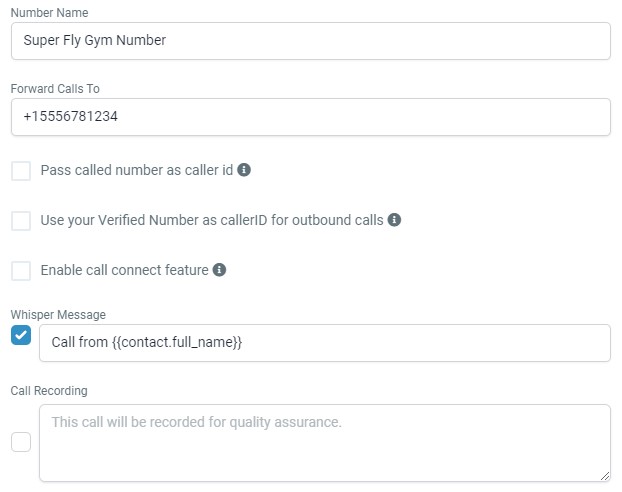
Go to Settings > Phone Numbers > Manage Phone Numbers, click on the ellipsis menu (⋮) next to the number you wish to update and select Edit Configuration. Here you have the option to set up a name for the number, set up call forwarding, enable call connect feature, enable whisper message and enable call recording. Once complete, click Update to save your changes.
Whisper Messages
A whisper message is a short message, which only you hear on your end of the line when a call is connected with a lead. It can help you best serve your customers and have context for a call. You can custom values in your whisper message. You can add custom values, such as , to hear the name of the lead you are about to be connected with.
Call Recordings
You may want to record calls to be able to re-listen to them for quality assurance.
- To listen to a call recording, go to Contacts and choose the contact you wish to listen to a recorded call with.
- Within the contact record for that individual contact, the center panel of the contact page should display communication you've had with the contact. Recorded calls feature a play button, and you can click that to listen within the contact record. You will also see a stop button, volume button, and download button.
Outbound Calls
Make Outbound Calls
On desktop, you can make a one time call by clicking on the green Call button in the very top right of the screen. Choose the phone number you want to call from (limited to the numbers you have set up in settings) and then type in the phone number you want to call and click Call.

You can also initiate calls from the Conversations page or Contacts page. For Contacts, open the contact card for the contact you wish to call and click the green call button above the middle conversation section. For Conversations, You can make calls from the conversations section by clicking on the lead that you wish to call and pressing the call button under their name in the right-hand section.
App Calls
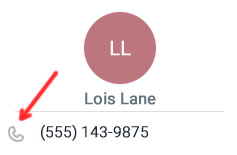
On the Lead Connector app, you can make a one time call by pressing the Call button on the Home screen. You can also go to the Conversations tab, select the contact and press the Call icon at the top of the page. Another option is to go to the Contacts tab, select the contact and click the call icon next to the phone number.
Inbound Calls
Inbound Calls App
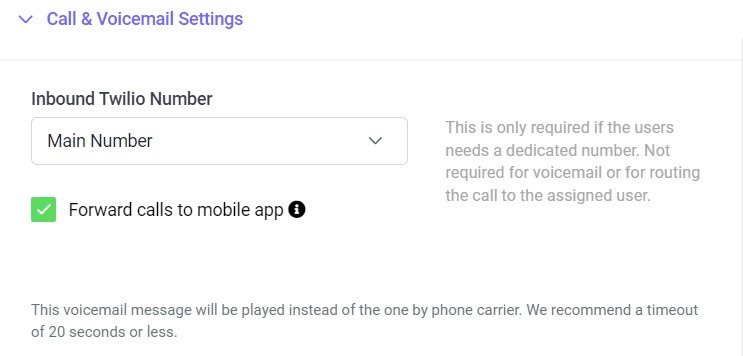
If you want to receive calls through the Lead Connector app, you need to enable this for the correct team member.
- Go to Settings > My Staff and click on the blue Edit button next to the correct team member.
- Expand the Call and Voicemail Settings section.
- From the dropdown menu, select the Inbound Twilio Number.
- Toggle on Forward Calls to Mobile App.
Call Forwarding
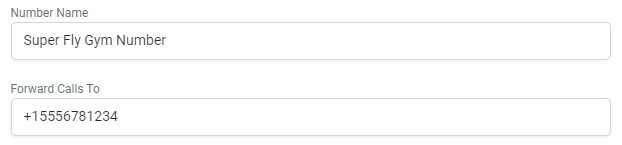
If you would prefer to forward incoming calls to another phone number, you can set up Call Forwarding.
- Go to Settings > Phone Numbers > Edit, and click the Edit icon next to the number you wish to update.
- Enter a forwarding number and click Update.
Company Phone
If you have not set up a specific Call Forwarding Number (and the lead is not assigned to a specific user), the call will be forwarded to the Company Phone (found in Settings > Business Profile).
Inbound Communication
Inbound Calls/Call Forwarding
If someone calls your Growth Catalyst CRM and have multiple phone numbers on your account, the call is routed to one of three numbers:
Assigned Growth Catalyst CRM Number – If the Growth Catalyst CRM number being called is assigned to a specific user/team member, the call will forward to the number in the user's phone field. To update the User Phone go to Settings > My Staff > Team Management, enter a phone number, and click Save.
Assigned User – If the Growth Catalyst CRM number being called is assigned to a specific user but the lead is assigned to a user, the call will be forwarded to the number in the user's phone field. To update the User Phone go to Settings > My Staff > Team Management, enter a phone number, and click Save.
Call Forwarding Number – If the lead is not assigned to a specific user and there is an assigned Call Forwarding Number in the Phone Number settings, the call will be forwarded to the set Call Forwarding Number. To update the Forwarding Call To Number, go to Settings > Phone Numbers and click on the Edit icon next to the phone number. Enter a forwarding number and click Update.
Company Phone – If you have not set up a specific Call Forwarding Number for your Growth Catalyst CRM number and the lead is not assigned to a specific user via a user assigned campaign, the call will be forwarded to the Company Phone (found in Settings > Business Profile).
Click here for a flow chart running through these scenarios.
