
Trigger links can be built so that when a lead/customer clicks on a particular link, a specified action happens. Trigger links allow you to put links inside SMS messages and emails, which allow you to track specific customer actions and trigger events based on when the link is clicked.
Trigger Links Dashboard
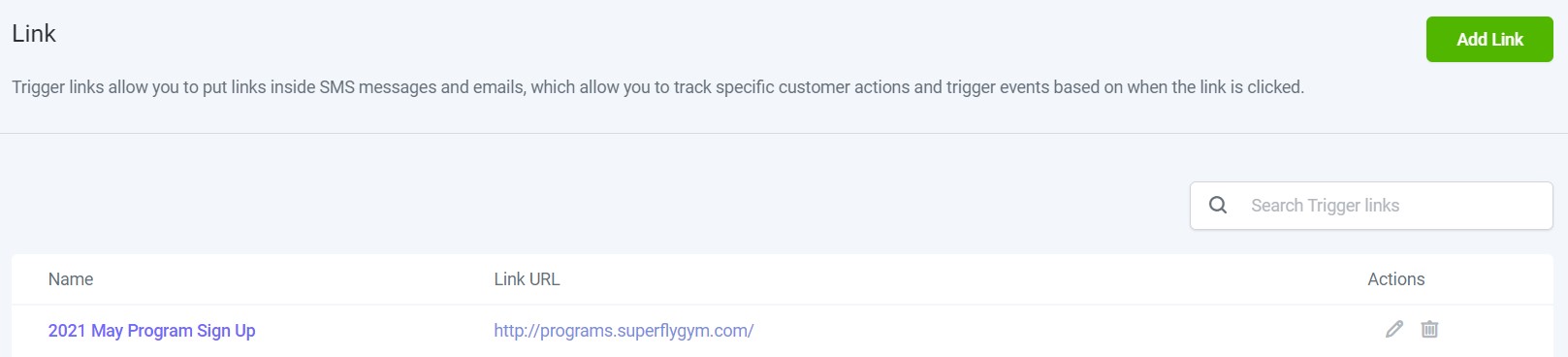
Go to Marketing > Trigger Links > Links to view existing trigger links.
Edit a Trigger Link
To edit an existing trigger link, click on the Edit icon. Update the name and/or the link and press Save.
Delete a Trigger Link
To delete an existing trigger link, click on the Trashcan icon and press OK in the popup window to confirm.
Creating a Trigger Link
Create a Trigger Link
- Go to Marketing > Trigger Links > Links. and click on the green Add Link. button in the top right-hand corner.
- Fill out the information in the popup- choose a name for your Trigger Link, and include the link URL you want people to be directed to when they click on the link.
- Press Save.
TOP TIP: If you are offering members a free program or challenge (where non-member have to pay), you can use a trigger link for the member to opt-in and then use the confirmation page as the URL.
Using Trigger Links
Use Trigger Links in Contacts
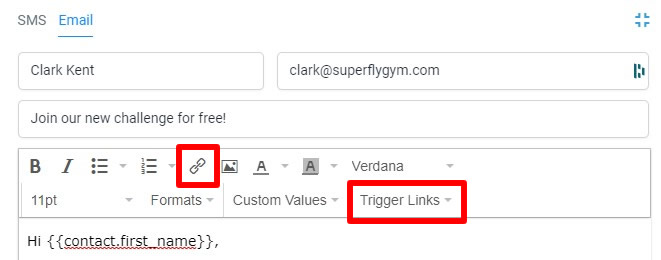
Trigger links can be used in one-off emails or bulk action emails in Contacts. For one-off emails, select the contact and click on Email in the center panel. For bulk action emails, select the required contacts and click on the Email icon in the bulk actions menu.
In the email editor, you can click on Trigger Links to select a link or, to hide the URL, you can click on the Link icon a select the trigger link from the Link List.
Click here for more information about contacts and click here for more information about bulk actions.
Use Trigger Links in Emails
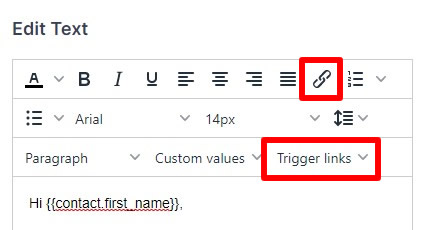
Trigger links can be used in emails. Go to Marketing > Emails, create (or open) an email and add a text block. In the text editor, you can click on Trigger Links to select a link or, to hide the URL, you can click on the Link icon a select the trigger link from the Link List.
Click here for more information about emails.
Use Trigger Links in Workflow Emails
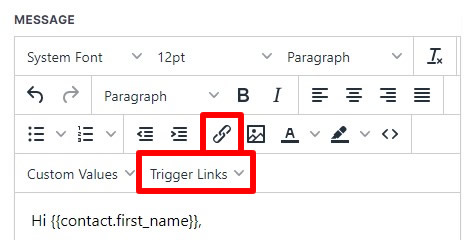
Trigger links can be used in workflow. Add a Send Email action step to the workflow. In the message editor, you can click on Trigger Links to select a link or, to hide the URL, you can click on the Link icon a select the trigger link from the Link List.
Automations
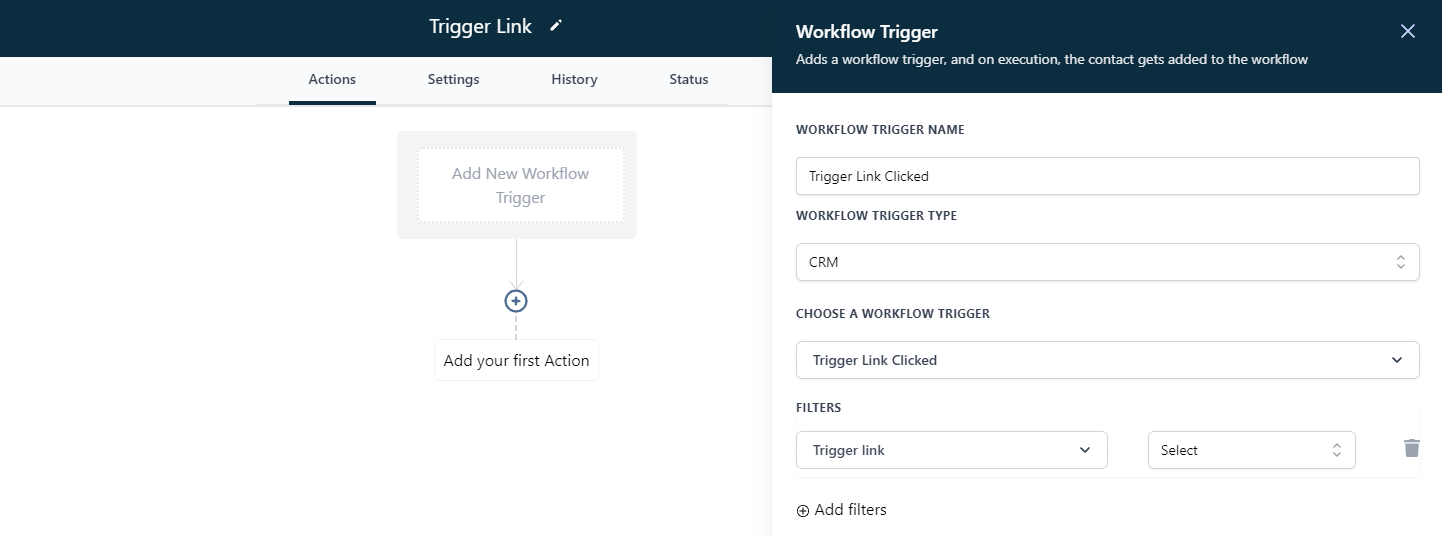
Trigger links can be used as a workflow trigger so that when a lead/customer clicks on a particular link, a specified action happens.
Trigger Link Workflow
- Go to Automation > Workflows and either create a new workflow or open an existing one.
- Click Add New Trigger and select Trigger Link Clicked. Define the filters as Trigger Link, and specify which trigger link you want this action applied for.
- Click the + to add a new action to the workflow. Use the right-hand menu to choose one or more actions to occur, such Add a Contact Tag or Send Internal Notification.
- Add any other required steps.
- Toggle on Publish and press Save.
Trigger Link Statistics
Analyze Trigger Links
Go to Marketing > Trigger Links > Analyze to see a graph of total clicks overall, as well as total clicks for each link. Scroll down to see a list of how many clicks each link has had in total.
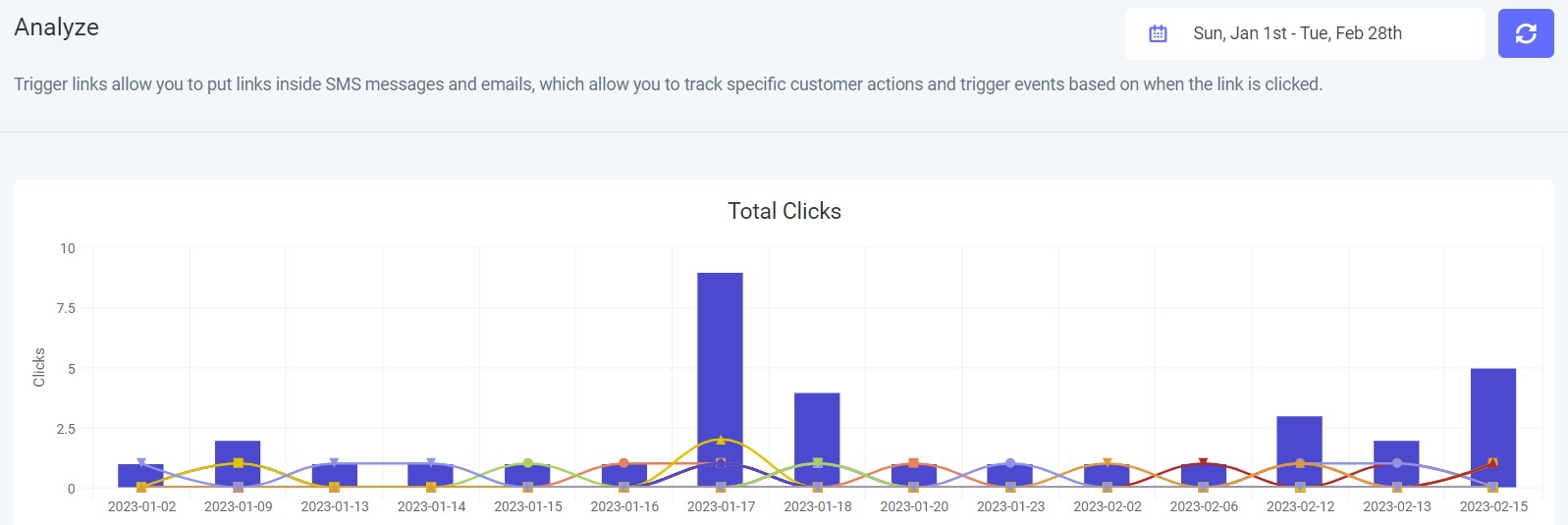
To change the date range, click on the calendar icon next to the date information in the top right corner.