
PHASE 2: Orientation
Created by: Emma Johnston
Last Updated: April 16, 2026
7. Onboarding Call
MARCH 2025 OFFER ONBOARDING CALL
If you have joined the March 2025 Transform in 4 offer, once you’ve completed your Getting Started tasks and read through the information on this page, you need to book onto one of the three group onboarding calls taking place at 1:30pm CT on March 31, 9:00am CT on April 2, or 11am CT on April 4.
It’s your responsibility to complete these tasks and schedule your call. If you are unable to attend a live call, these sessions will be recorded.
BOOK YOUR ONBOARDING CALL 🥳
Once you’ve completed your Getting Started tasks and read through the all information on the page, you need to book your 30-minute onboarding call. SC Grow members will join a small group onboarding session, while SC Thrive members receive an individual onboarding call.
It’s your responsibility to complete these tasks and schedule your call. If you don’t book within 7 days of joining, we’ll give you a gentle nudge to get started. Otherwise, we’ll be here when you’re ready.
Welcome to Growth Catalyst CRM!
WELCOME TO PHASE TWO: ORIENTATION
Now that your account setup is complete, it’s time to move into Phase Two: Orientation. This will give you a strong foundation—where everything lives, how to get help, and how to keep learning at your own pace. Work through this Phase Two section step by step to set yourself up for success.
WHAT COMES NEXT?
We know you’re eager to dive straight into Growth Catalyst CRM—and we love that. Growth Catalyst CRM is a feature-rich, powerful system, and for most coaches it takes 3–6 weeks before everything really clicks into place. That’s completely normal.
Once you’ve finished Phase Two, you’ll be ready for Phase Three—a bite-sized, learn-by-doing approach that focuses on one area of the software at a time. This pacing helps minimize overwhelm and maximize long-term success. Even if it feels a little slower in the first couple of weeks, coaches who give themselves this grounding almost always move faster and more confidently with the software over time.
SELF-LEARNING RESOURCES
Where to Learn More...
In Phase Three, we’ll point you to a few help articles (such as the Social Planner, Calendars, and Emails) to help you get started. Later, when you are ready to get a better understanding of the system and its features, we have additional support resources to ive you the autonomy to troubleshoot, learn, and deepen your knowledge at your own pace.
INFORMATION HUB
If you’d like a full overview of a feature, use our Information Hub guides. The Information Hub contains everything you need to know about Growth Catalyst CRM. To access this, click on the Help & Request link in the main left-hand menu bar, or through the purple chat bubble on the homepage.

The navigation in the Information Hub follows the same order as the left-hand menu in the software. Each guide provides a complete overview of a feature, with step-by-step instructions, screenshots, and related resources all in one place. These long-form guides are ideal when you want to understand how a feature works from start to finish.

KNOWLEDGE BASE
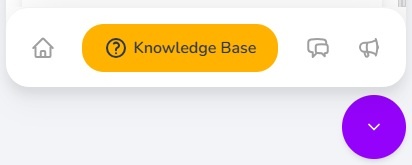
If you have a specific question, use our searchable Knowledge Base. The Knowledge base is a library of bite-sized help articles, perfect for quick, specific answers.
To access this, click the purple chat bubble in the bottom right-hand corner of your dashboard. Type a keyword, and matching help articles will appear instantly. Click any result to expand it and follow the step-by-step instructions without leaving your screen.
Support
Where to Get Support
SUPPORT
We offer two support channels: Support AI for quick answers, and our human support team for anything more complex or specific.
AI ASSISTANT
If you have a how-to question — such as adjusting settings, editing elements, or locating features within the platform — start with our Support AI assistant.
Support AI works like a live chat version of our Knowledge Base. It searches on your behalf and instantly shares the most relevant answers, making it the fastest way to get help in most situations.
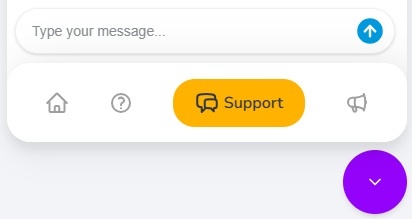
To access Support AI, open the purple chat bubble in the bottom-right corner of your dashboard, click the Support tab, and type your question. You’ll get the best results by typing a full question rather than a single keyword.
SUPPORT TEAM
If Support AI is unable to answer your question, or you would prefer to speak to a human, you can contact our support team by emailing [email protected]. Our team is available Monday to Friday during normal business hours (CST) and we aim to reply within 24–48 hours.
Our approach with support is done-with-you support rather than done-for-you support. This means you keep autonomy, control, and independence in how you use the software, while we provide the resources, templates, guidance, and expertise you need to keep moving forward.
Live Calls
STRATEGY CALLS
If you require one-to-one strategic support, you can book a consultation call with the Support Team for an additional fee. These calls are designed for deeper account reviews, planning, or growth strategy support.
Click here for more information.
OFFICE HOURS AND GROUP CALLS
We also run regular group Success Calls and Office Hours. These sessions cover business strategy, feature walkthroughs, and answers to common support questions. Check the SC Community for upcoming dates and details.
Staying UpdateD
Where to Find Updates...
NEWS AND ANNOUNCEMENTS
We rarely send out emails to our users (because we tend to find these just get lost in the noise of your inbox). Instead, we share the information you need in the GC Community, the News & Updates section of the purple chat bubble, the News & Updates page, and in the footer of the Information Hub.
We recommend checking in on the GC Community or these areas about once a week to stay up to date.
KOLLAB APP
To access the SC Community on your phone (and get notifications for new posts), we recommend downloading the GoKollab app. Click here to download the Apple app or click here to download the Android app.
INFORMATION HUB FOOTER
At the bottom of the Information Hub, you'll find up-to-date information about the support desk opening times and some helpful quick links (such as this Getting Started page, News and Updates and the Growth Catalyst CRM Community (see more below).
TERMS AND CONDITIONS
We also recommend taking a look through our Terms and Conditions page at some point as this covers more information about our service level agreements, email and text compliance, and phone pricing.
Project Requests
All About Project Requests...
PROJECT REQUESTS
One of the great things about Growth Catalyst CRM is our built-in templates and project request feature, which is available to our GROW and THRIVE users. Our ready-made resources give you a solid foundation, so you can focus on personalizing them to fit your business without starting from scratch.
For our standard templates, we’ll set up your funnel, forms, marketing emails, and workflows (automations). You also get access to Coach Catalyst program guides, as well as our lead magnet resources and recipe packs. We can brand these for you, or for instant access, you can choose to brand them yourself and start using them right away.
Each request (funnel setup or guide) deducts one credit from your balance. Click here for more information about credits.
SEASONAL PROJECTS
We’ll automatically add the funnel, marketing emails, and workflows to your account for the New Year Collection, Transform in 4 in May, Summer Slimdown, Vegetable Challenge in June, Back to School in September, the Spooktacular Collection, and Christmas Countdown. You will still need to request the guides.
How to Submit Project Requests...
SUBMITTING A REQUEST
To request a project, head to the Information Hub homepage and click on the resource name. Click on the request button and complete the form. Although we aim to complete these requests within 7 days, please allow up to 28 days for completion. Only one active request can be submitted at a time. Once your current request is completed, you’ll be able to submit another.
EDITS AND TESTING
Once your project is complete, we will email you to let you know. You can then edit your funnel and marketing emails, add and connect your product and complete a test payment. We recommend completing a test purchase at least five days before you launch, so that we have plenty of time to iron out any wrinkles!
So that you have enough time to make edits and market your program effectively, we recommend submitting requests at least six to eight weeks before your launch date.
PHASE 3: Using the Software
Getting Started with Core Tools...
CORE TOOLS: EMAILS, CALENDARS AND SOCIAL PLANNER
Now that your account is set up and you know where to learn and get help, you’re ready to start using the software. Phase Three follows a bite-sized, learn-by-doing approach. We recommend starting with three core tools: emails, calendars, and the social planner. The key is to focus on one area at a time so you can build confidence gradually without overwhelm.
Emails (Newsletters): Send your weekly updates and announcements to clients. Click here to get started.
Calendars: Take bookings and manage appointments inside the software. Click here to get started.
Social Planner: Schedule posts and keep your content consistent across platforms. Click here to get started.
PROJECT REQUEST
We suggest submitting a Project Request as soon as possible. This allows us to set everything up so you can start using the software purposefully, with something real and tangible. It helps you hit the ground running without needing the same level of understanding you would if you were setting everything up from scratch.
Combined with the three tools above, this makes the software feel valuable within the first couple of weeks and lets you start generating leads or selling while you build confidence with deeper features.
PHASE 4: ONBOARDING CALL
Onboarding Call
ONBOARDING STRATEGY CALL
You’re entitled to one 25-minute strategy call as part of your onboarding. This session is designed to help you plan your next steps, prioritise what to focus on, and create a clear, practical direction based on what you’ve already started.
You must be in Phase 3 and have started using some of the core features before booking. This ensures you have enough context for the session to be focused and valuable. You can book your call any time within the first three months of joining. When you’re ready, contact the Support Team at [email protected].
PLEASE NOTE...
This call does not cover how-to questions or walkthroughs of the system features. The platform takes time to learn properly (typically 4–6 weeks), and step-by-step guidance is best accessed as you go using Support AI, the knowledge base, or by contacting the support team. These resources are designed to give you clear, targeted answers while you’re actively using the system.
Frequently Asked Questions
Frequently Asked Questions
CAN I FORWARD EMAILS TO MY OWN INBOX?
If you would like to forward emails to your own inbox, go to Settings > Email Services > Reply & Forward Settings. Otherwise, replies can be found in Conversations.
CAN I IMPORT MY EXISTING CONTACTS?
Yes, you can. You will just need a CSV file with the contacts you want to import. Click here for instructions.
You can also create Smartlists after to organize your contacts. Click here for more information.
CAN I HAVE A PHONE NUMBER FOR TEXT MESSAGES?
Yes, you can add a phone number to send and receive text messages. Text messages and phone calls are an additional charge. Click here for pricing information.
Before adding or activating a phone number on your account, please ensure you have the required information ready. Phone number registration is not an instant process. It involves an application and approval stage, which varies depending on the country and local regulations.
To begin the registration process, you will need a business email address, a privacy policy, and a business website on your root domain (not a subdomain). If you are based in the US and operating as an LLC, you will also need your CP575 form. The business details provided must match exactly across all documents.
Once you have all of the above in place, please contact the support team at [email protected]. We will guide you through the registration requirements and ensure everything is set up correctly before submitting your application.
CAN I ADD OTHER TEAM MEMBERS?
Yes, you can. Go to Settings > My Staff > Add User. Once added, you’ll need to customize their permissions so they only have access to the areas of the system that are relevant to them. This step is important, as new users won’t automatically have the correct permissions. Click here for more information on setting up a new user.
Each new team member will also need to connect their calendar and update their profile and availability.
HOW DO I VIEW OR MAKE CHANGES TO MY PLAN?
To view or make changes to your account — such as downgrading, upgrading or cancelling — go to Settings > Billing.
If you have a quick, system-specific "how-to" question, you can chat with our Support AI Assistant using the purple chat bubble in the bottom corner of the software. This is available 24/7, giving you instant access to help at any time of day.
If you have a more complex question, or you would prefer to speak to a human, you can contact our Support Team by emailing [email protected]. Our team is available Monday to Friday during normal business hours (CST) and we aim to reply within 24–48 hours.
For all Coach Catalyst queries, email [email protected].